Dawn is Shopify’s most-installed theme. It is clean, fast, and works on every store size. But it does not include wishlist functionality out of the box. Most merchants who want one think they need a developer or custom code. They do not.
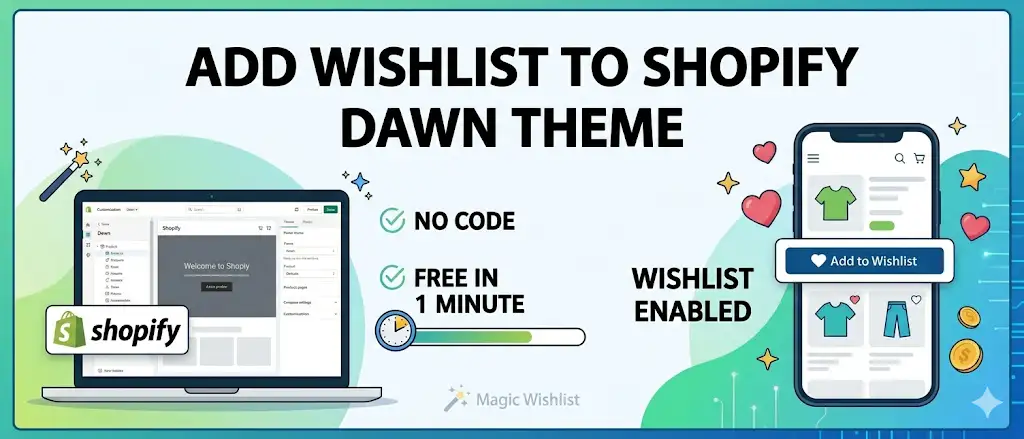
This guide shows the fastest way to add wishlist to Shopify Dawn theme. No custom code. No theme edits. Live in one minute.
Quick answer:
- Install Magic Wishlist from the Shopify App Store.
- Open Online Store → Themes → Customize → App embeds.
- Toggle Magic Wishlist on and save.
The heart button shows up on every product card and product page automatically. Full wishlist functionality with zero custom code touching your Dawn files.
What is the best way to add wishlist functionality to Shopify Dawn theme?
The best way to add wishlist functionality to Shopify Dawn theme is to install a free Online Store 2.0 wishlist app. Three reasons:
- No custom code. Dawn’s app block system lets the app inject UI into your theme without modifying Liquid, JavaScript, or CSS files.
- Survives Dawn theme updates. App blocks live in sandboxed slots, so Shopify’s regular Dawn releases do not break your wishlist functionality.
- Complete feature set out of the box. A wishlist is more than a UI button. It needs guest persistence, account merging, variant tracking, and an email pipeline. A free app includes all of it.
The alternative is editing Dawn’s source code yourself or hiring a developer. Both work, but both cost time and money you do not need to spend.
Why Dawn doesn’t include a wishlist
Dawn ships with the basics: product pages, cart, search, collection grids. Shopify made it a clean reference theme, not a kitchen-sink theme. You can browse the full Dawn source on GitHub and see for yourself how lean it is. Features like wishlists, back-in-stock alerts, and recovery emails are deliberately left to apps.
That is actually good news. Apps stay updated when Dawn does. Apps also handle the things a wishlist needs that a theme cannot do on its own:
- Email delivery for back-in-stock and price drop alerts.
- Cross-device sync so a saved item follows the shopper.
- Behavior tracking for analytics and segmentation.
- A queryable record of who saved what.
A theme is a presentation layer. A wishlist is a database problem dressed up as a UI feature. Theme customization can give you the heart icon, but the wishlist functionality behind it lives outside the theme.
Benefits of wishlist functionality for Shopify Dawn stores
A wishlist is one of the highest-ROI features you can add to a Shopify Dawn theme. The structural reasons:
| Benefit | Impact |
|---|---|
| Capture browse-only shoppers | Most Shopify shoppers don’t buy on the first visit. A wishlist saves their interest so you can follow up. |
| Variant-level intent signal | Save a specific size and color, not just a product. Recovery emails fire only on the exact variant. |
| Built-in recovery email pipeline | Abandonment, price drop, low stock, and back in stock alerts are all included, no separate email app needed. |
| Guest wishlists with no signup | Shoppers save without creating an account. Wishlist functionality works for everyone, not just logged-in customers. |
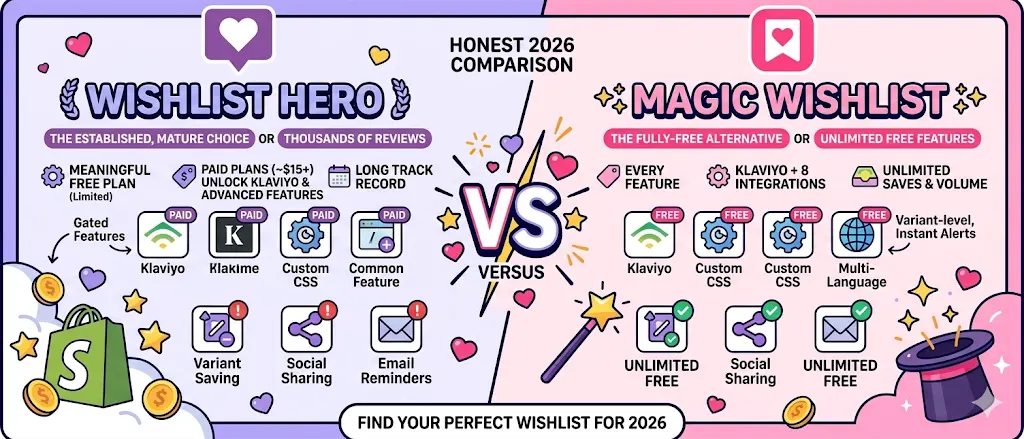
| Klaviyo and 8 other integrations | Wishlist events feed your existing email and SMS automation in one click. |
| Zero theme maintenance overhead | Updates to Dawn do not require developer intervention. The app block adapts automatically. |
The net effect for most Dawn stores: 4-8% revenue recovery from saved-but-not-bought shoppers, with no ongoing engineering cost.
Adding wishlist using custom code vs wishlist apps
The honest comparison of the three real ways to add wishlist to Shopify Dawn theme.
| Approach | Setup time | Cost | Recovery emails | Dawn update safety | Customization ceiling |
|---|---|---|---|---|---|
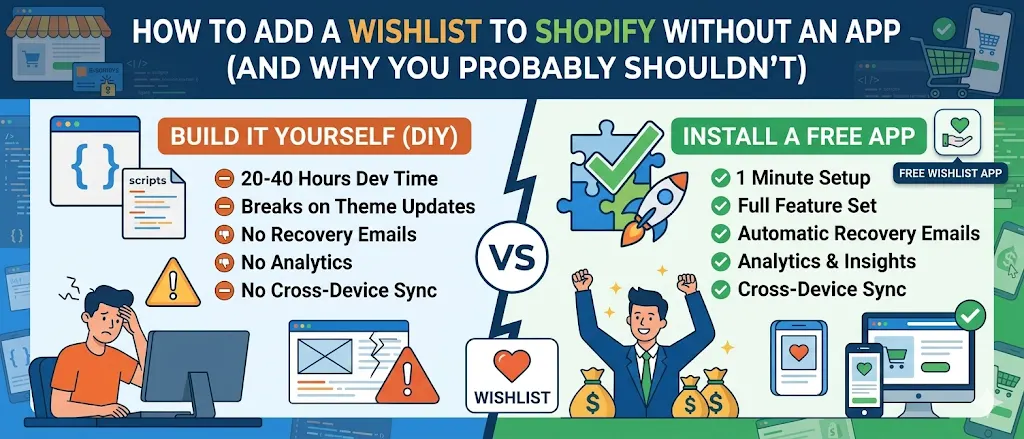
| Custom code (DIY) | 20-40 hours | Your time | Build separately | ❌ Breaks on updates | Unlimited |
| Hire a developer | 1-3 weeks | $2,000-$8,000 | Build separately | ⚠️ Ongoing maintenance | Unlimited |
| Free wishlist app | 1 minute | $0 | ✅ Built-in (4 types) | ✅ Survives updates | High (CSS + theme settings) |
Option 1: Edit Dawn’s code yourself
To build wishlist functionality with custom code, you would need to:
- Duplicate Dawn and add Liquid sections for the heart button and wishlist page.
- Write JavaScript to read and write to
localStorage. - Hook into Shopify’s customer object to merge guest data with logged-in accounts.
- Build a separate email pipeline for back-in-stock, price drop, and abandonment notifications.
Realistically that is a 20-40 hour build for a developer who already knows Dawn. The custom code breaks every time Shopify pushes a new Dawn release, which happens roughly every few weeks. You also have no analytics, no shopper-side account merging, and no email deliverability infrastructure.
Skip this unless you genuinely need a one-off custom flow no app supports.
Option 2: Hire a Shopify developer
A custom wishlist build with email capture, variant-level saving, and a basic admin dashboard runs $2,000-$8,000 from a competent Shopify Partner agency. Ongoing maintenance is extra. Every Dawn theme update may require a small fix.
For most stores this is overkill. You pay developer rates for wishlist functionality that free apps already ship with. The only time it makes sense is when you have a strict compliance requirement (data residency, internal CRM sync) or a wildly non-standard product catalog. Configurators and B2B quote builders are two examples where off-the-shelf apps may not cover the need.
Option 3: Install a free wishlist app (recommended)
One-minute setup. Stays compatible with Dawn updates automatically because the app loads as an Online Store 2.0 app block, not a theme edit. No custom code touches your Dawn theme. Recovery emails, analytics, and shopper account merging are all included. This is the path 95% of Dawn merchants take, and it is what we recommend.
How to add wishlist to Shopify Dawn theme in 1 minute (go-live)
Magic Wishlist is a free wishlist app built specifically for Online Store 2.0 themes, which means it works perfectly with Dawn. No theme edits, no Liquid changes, no developer.
The three steps below are the minimum to get the heart button live on your store. Customization and recovery emails come after, in the next section.
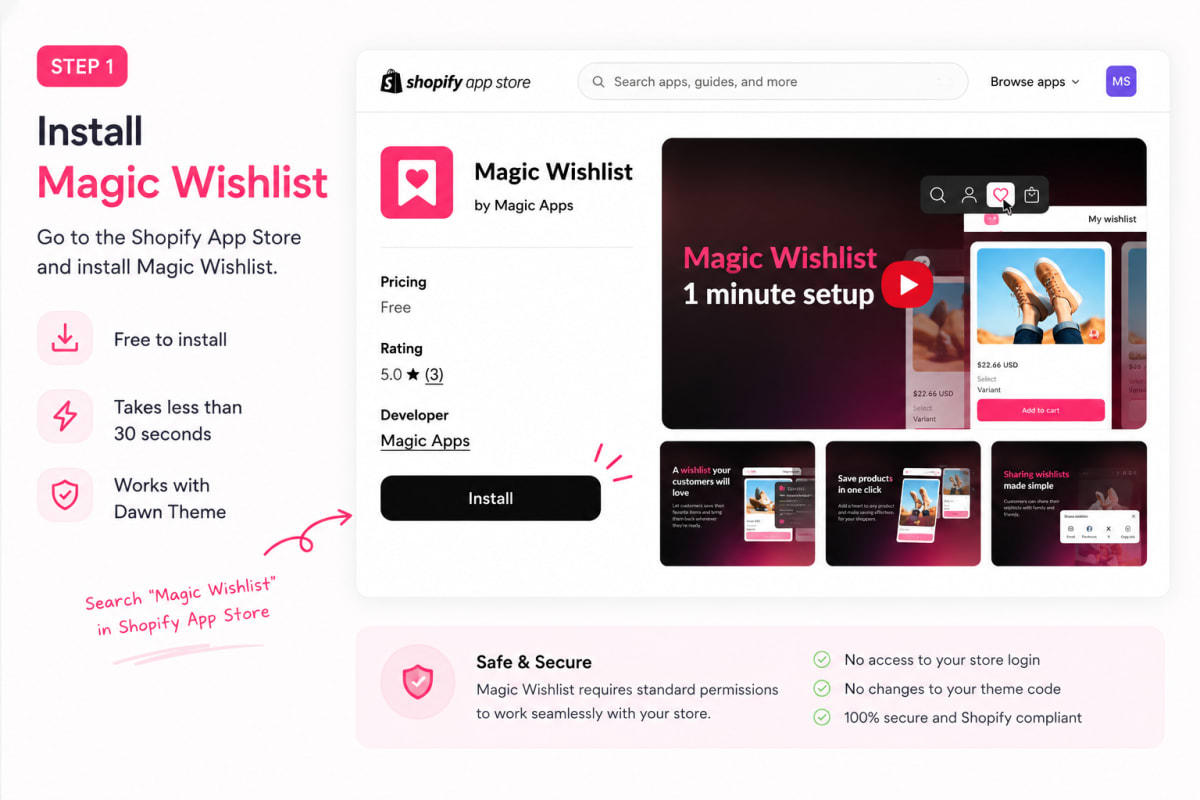
Step 1: Install the app
Go to the Shopify App Store listing and click Add app. Approve the standard permissions Shopify asks for. The install takes about thirty seconds.
You will land on the Magic Wishlist dashboard inside your Shopify admin.
Step 2: Enable the app embed in the Dawn theme editor
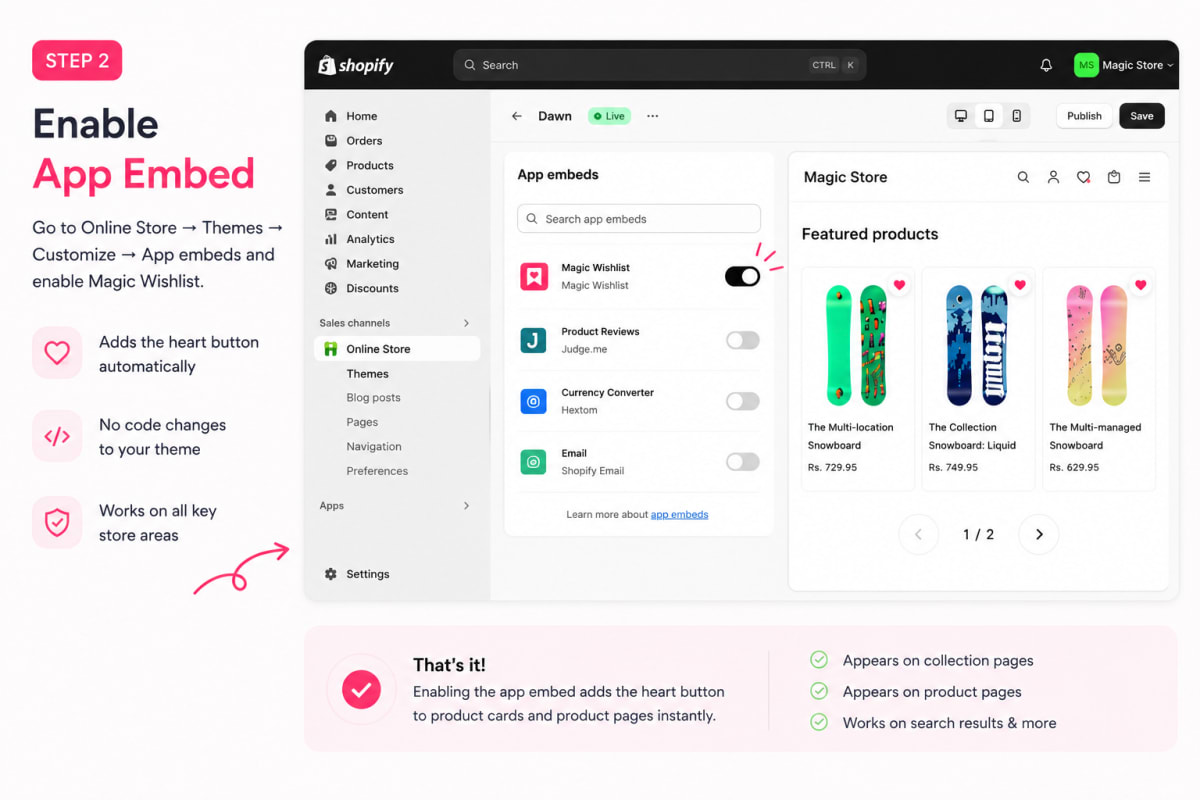
Open Online Store → Themes → Customize. In the theme editor, click App embeds in the left sidebar. You will see Magic Wishlist in the list. Toggle it on.
This is the key part. Toggling the embed adds the heart button to your store on every product card and every product page. Dawn’s actual code stays untouched. The wishlist functionality is injected through the app block system, not by editing your theme.
Click Save in the top right.
Step 3: Confirm the heart block is on your product template
Still in the theme editor, open Products → Default product. The Magic Wishlist heart block is added automatically next to the product title. Save the theme.
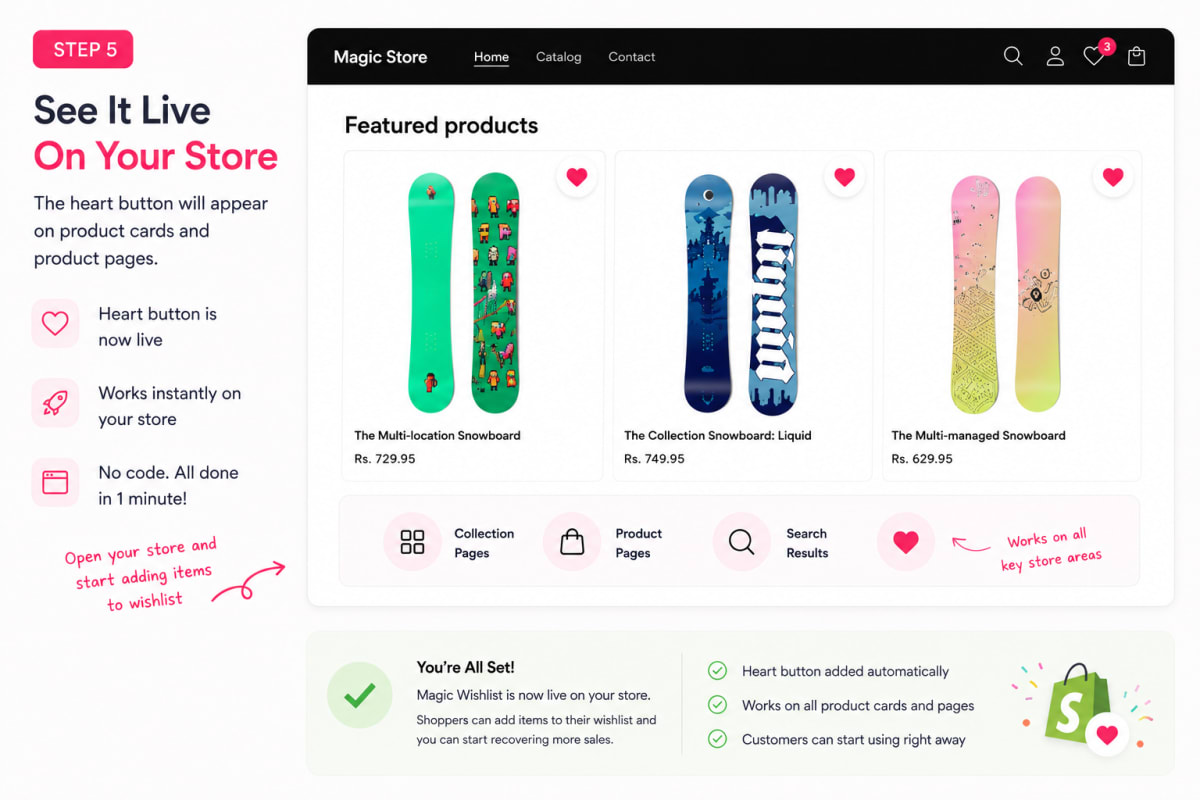
That is it. Your wishlist is live. Open any product page in an incognito tab and the heart button is there.
Optional: branding and recovery emails (extra polish)
Your wishlist works with sensible defaults out of the box. The two steps below let you match it to your brand and turn on the four built-in recovery emails. Both are optional but each takes only a minute or two.
Pick your colors and style
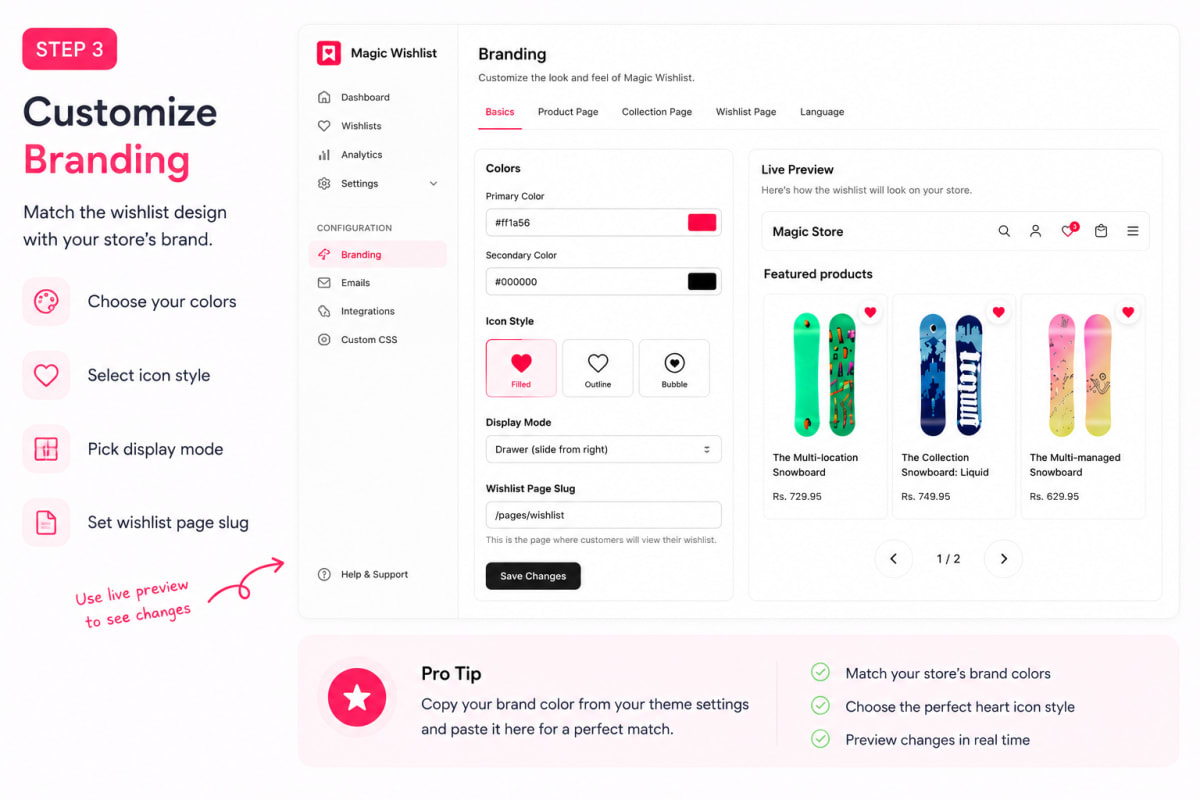
Back in the Magic Wishlist dashboard, open Branding. Set:
- Primary color: match your brand. Default works fine for most stores.
- Icon style: filled, outline, or your own SVG.
- Display mode: drawer (slides in from the right), modal, or full page.
- Wishlist page slug: usually
/pages/wishlist.
Use Live preview before saving. You will see exactly how the heart button looks on Dawn.
Turn on recovery emails
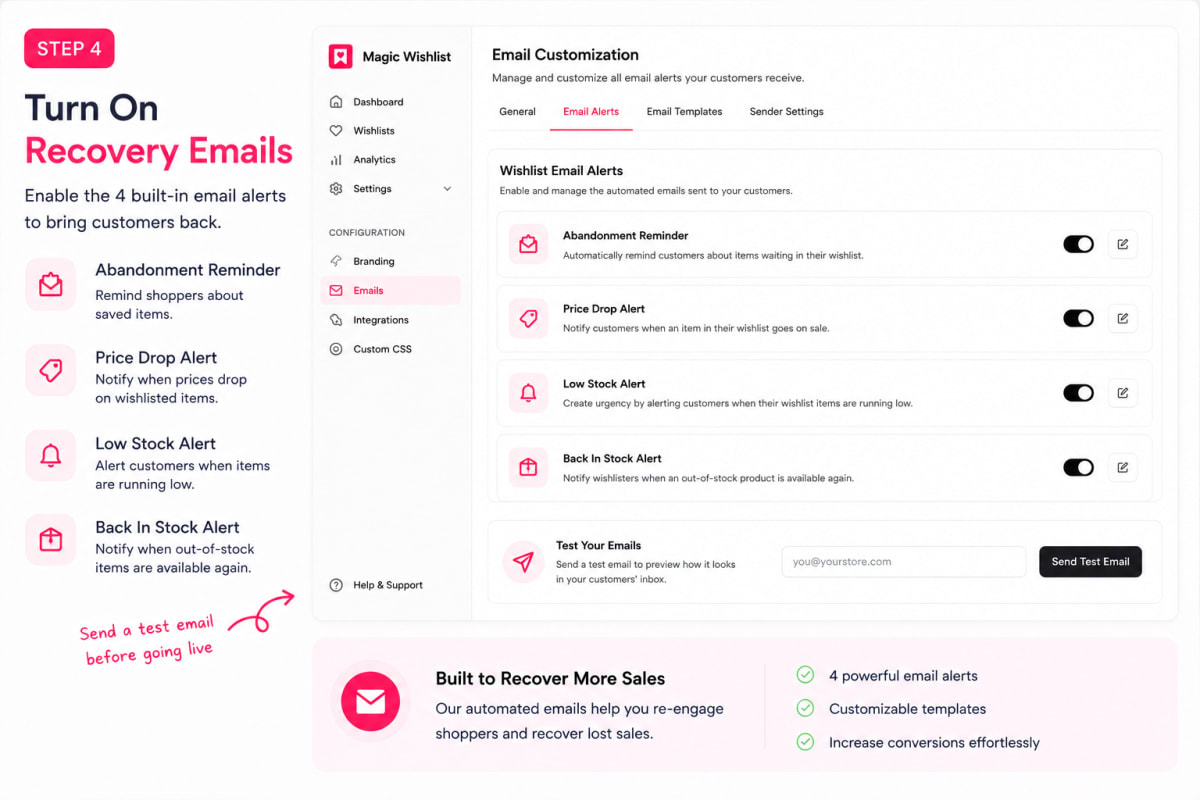
In the Emails tab, switch on the four built-in recovery email types:
- Abandonment reminder
- Price drop alert
- Low stock alert
- Back in stock alert
Each email has an editable subject line, body, and color. Send a test email to your inbox to preview before going live.
Where the heart button shows up in Dawn
App blocks slot into specific Dawn templates. With Magic Wishlist enabled, the heart button appears in:
- Product cards on collection pages
- Product pages (the
main-productsection) - Search results
- A dedicated wishlist page at
/pages/wishlist
You do not need to add anything to those templates yourself. Dawn’s app block slots already exist, and Magic Wishlist just plugs in.
Best practices for Shopify Dawn theme customization
Adding wishlist functionality without custom code is one example of a broader pattern. The same theme customization rules apply to any feature you add to Dawn.
Use app blocks instead of theme code edits
Online Store 2.0 app blocks are sandboxed. They live in slots inside the theme, not inside the theme’s Liquid files. This means three things:
- Theme updates do not break app blocks.
- App blocks can be added and removed in the theme editor without touching code.
- Multiple apps can coexist without conflicting with each other or with Dawn’s source.
If you need a feature, look for an app block first. Custom code should be the last resort, not the first.
Match Dawn’s design tokens, do not override them
Dawn uses CSS variables for colors, typography, and spacing. When you customize a third-party app’s appearance, pull the app’s colors from Dawn’s existing accent hex in Theme settings → Colors. Do not introduce new brand colors that fight Dawn’s design tokens. This keeps the wishlist functionality visually native to your store.
Preview every change before publishing
Dawn’s theme editor includes a Live preview button. Use it before saving any theme customization, especially when toggling app embeds for the first time. Catching a misplaced block in preview takes seconds; catching it after publishing costs you a customer.
Document your theme customization decisions
Even with app blocks, your store accumulates configuration choices over time: which apps are enabled, which colors are set, which sections are reordered. Document these in a shared note. When you onboard a new team member or hire a designer, the documentation is what saves you from rediscovering every decision.
Keep a Dawn version note in your team docs
Shopify ships Dawn updates regularly. If you ever did a one-off custom code change in a theme file (even a small CSS override), note the Dawn version it was made against. When the next Dawn update lands, you know exactly where to look for breakage.
If you fork Dawn, treat it as a parent theme
Stores that need deeper customization sometimes duplicate Dawn as a parent theme and apply modifications to the copy. If you go this route, talk to a theme developer first. Forking Dawn means you take on every future update manually. Magic Wishlist still works on a forked Dawn because app blocks load through the Shopify theme architecture, not through any specific theme file. But product details and template slots in your forked Dawn may need to be re-mapped if you remove the standard product info section.
Customizing colors to match Dawn
Dawn uses CSS variables for colors. Magic Wishlist reads your store’s brand color from its own settings, not Dawn’s variables. If you want exact color matching:
- Find Dawn’s accent color in Theme settings → Colors. Copy the hex value.
- Paste that hex into Magic Wishlist’s Branding → Primary color.
- Save. The heart fill, buttons, and email accents now match Dawn perfectly.
For pixel-perfect control, the Custom CSS field lets you override anything without editing your theme.
Troubleshooting: heart button not showing
Most issues fall into one of these nine buckets.
Check 1: Is the app embed actually on? Go back to Theme editor → App embeds. Confirm the toggle is green. Save again. About half of “the button disappeared” support tickets are an embed that was toggled off accidentally during a theme tweak.
Check 2: Are you previewing the right theme? Dawn might have multiple versions in Themes. Make sure the Customize button you clicked was on the published theme, not a draft. The app embed is set per theme, so a draft theme will not carry over the toggle until you publish it.
Check 3: Is the product page using the standard main-product section? If your store uses a heavily customized Dawn fork or a child theme, the app block may need to be placed manually. Open Customize → Products → Default product, find the Magic Wishlist block in the section picker, and drag it into the page.
Check 4: Heart button shows on the home page but not product pages? This usually means the app embed is on but the product template was customized to remove the product info section where the heart block lives. Open Customize → Products → Default product. Scroll to the section that contains the product title and confirm a Magic Wishlist heart block sits inside it. If not, add one.
Check 5: Wishlist page returns a 404? Magic Wishlist creates a page at /pages/wishlist automatically on install. If it does not exist:
- Go to Online Store → Pages and click Add page.
- Name it “Wishlist” and set the URL handle to
wishlist. - Choose the wishlist template suffix and save.
- Re-open Magic Wishlist → Branding and re-confirm the page slug.
Check 6: Colors not matching your Dawn theme? Magic Wishlist reads its primary color from its own dashboard, not from Dawn’s CSS variables. Copy your Dawn accent hex from Theme settings → Colors, paste it into Magic Wishlist → Branding → Primary color, and save. For email colors, repeat the same hex in Emails → Email styling.
Check 7: App embed toggle missing from the sidebar? This means the install did not fully complete. Uninstall Magic Wishlist from your Shopify admin under Apps, then reinstall from the Shopify App Store. The toggle reappears in Theme editor → App embeds within thirty seconds of a successful install.
Check 8: Email alerts not sending or hitting spam? Walk through the email delivery checklist:
- Verify the sender email address. In Magic Wishlist → Emails, confirm each alert type is toggled on and the sender email address is verified inside your Shopify admin. Shopify’s email pipeline silently drops sends from unverified addresses.
- Confirm transactional emails are enabled. Check Shopify Email marketing settings to confirm transactional sends are on (not just marketing).
- Check the bounce rate in your logs. Open Magic Wishlist → Logs and look for failed-send reasons. A high bounce rate usually means stale email addresses on your email list, not an app problem.
- Test deliverability against the spam folder. Send a test email to a personal Gmail and an Outlook account. If both land in the spam folder, the receiving server is filtering you. Most common cause: SPF, DKIM, or DMARC records on your sender domain are missing or wrong.
- Watch for spam complaints. Open your sender domain’s reputation dashboard (Google Postmaster, Microsoft SNDS) and check spam complaints in real time. A spike means your email list quality is dropping; remove inactive subscribers to recover.
- Monitor IP addresses. If your sending IP addresses appear on a blocklist, even perfect copy will hit the spam filter. Magic Wishlist uses dedicated IP ranges with strong reputation, so this is rare, but worth checking if open rate suddenly drops.
- Optimize when emails land. Time recovery emails to land at the shopper’s local working hours. Emails reach the inbox better when sent during low-spam-traffic windows (typically 9-11am local).
- Maintain a clean target audience. Suppress shoppers who have not opened any email in 90 days. They drag your open rate down and make future emails reach fewer inboxes.
If you have tried all of these and emails are still not reaching shoppers, contact our customer service team. We will check your sender configuration and bounce reports directly.
Check 9: Guest wishlist items disappearing between visits? Guest wishlists are stored in a first-party cookie that lives for one year by default. If items vanish, three things are usually responsible:
- The shopper cleared cookies or switched browsers.
- Your cookie-consent banner strips functional cookies before they are set.
- An ad-blocker on the shopper’s device is removing first-party storage.
To verify, save an item as a guest, close the tab, reopen the same browser, and confirm the item is still there. If not, check your cookie-consent app’s default category for first-party functional cookies. It should be allowed by default, not deferred.
If none of these work, feel free to contact us at support@getmagicapps.com and we will fix it for you within one business day.
Add wishlist to Shopify Dawn theme in 1 minute
Dawn does not include a wishlist, but you do not need to write custom code to add one. Magic Wishlist is free, plugs into Dawn’s app block system, and ships with recovery emails turned on by default. Full wishlist functionality, zero theme code touched.
Install Magic Wishlist free. Your first save can happen this hour.