A shopper visits your store. Falls in love with a jacket. Hits “add to cart.” Sees the size they want is sold out. Closes the tab.
Without back in stock notifications, that shopper is gone forever.
Shopify back in stock notifications are the automated emails that turn that lost sale into a recovered one. The shopper saves the item (or taps a notify me button), you fire an email the moment the variant returns to inventory, and they come back to buy. It is the simplest recovery flow in ecommerce, and one of the highest-converting at 15–25% versus 2–4% for typical ecommerce email.
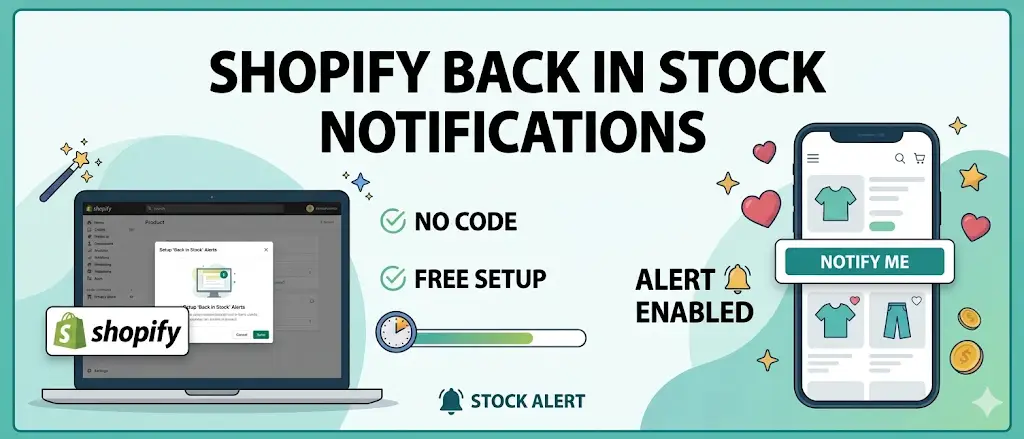
This guide shows the free way to set up Shopify back in stock notifications. No code. One minute. Works with any Shopify theme.
Quick answer:
- Install Magic Wishlist from the Shopify App Store (free plan, no free trial, no credit card).
- Toggle the app embed on in your theme editor.
- Open Emails in the dashboard and switch on Back in Stock Alert.
The email fires automatically when a saved item returns to inventory. The trigger is variant-level, so a shopper who saved Size M only gets the email when Size M is back. Built for Shopify, every feature included free.
What are Shopify back in stock notifications?
A back in stock notification is an automatic email triggered when a sold-out product variant returns to your inventory. The shopper signals interest before the email exists (via a wishlist save or a notify me button), and the app sends the email server-side when stock returns.
The full pipeline:
- Shopper signals interest: saves the item or clicks the notify me button while it is out of stock.
- App stores the request: variant ID + shopper email + timestamp.
- App polls Shopify inventory: every few minutes.
- Stock returns: admin restocks the variant, or fulfillment cancels free up units.
- Email fires: sending emails directly from the app, addressed to each shopper waiting on that variant.
The result: you notify customers within minutes of restock, with zero manual work after setup.
Why back in stock alerts convert so well
Most ecommerce emails work hard for a 2–4% conversion rate. Restock alerts often hit 15–25%. The reason has nothing to do with copywriting.
The trigger is the offer.
When you tell a shopper “the item you wanted is back in stock,” you are not asking them to want something. You are telling them they can finally have something they already wanted. The decision was made weeks ago. The email just removes the obstacle.
Three more reasons these emails work:
- Specific item, specific shopper. No segmentation needed. The trigger handles it.
- Time-sensitive by nature. Urgency is real, not manufactured.
- No discount required. You don’t need to give margin away to get the conversion.
How do I set up back in stock notifications on Shopify?
You have three real options. They are not equal.
| Approach | Setup time | Monthly cost | SMS / push | Free plan | |
|---|---|---|---|---|---|
| Native Shopify | N/A (doesn’t exist) | – | – | – | – |
| Klaviyo + inventory app | 2–4 hours | $20–$60+ | ✅ | Add-on | Trial only |
| Free wishlist app (Magic Wishlist) | 1 minute | $0 | ✅ | Email-only today | ✅ Free forever |
Option 1: Native Shopify (does not exist)
Shopify’s storefront includes an inventory tracker. It does not include back in stock email alerts. There is no native way to set this up without an app or custom code. Don’t waste time looking. Shopify decided this was a Shopify App Store feature, not a platform feature.
Option 2: Klaviyo or another email tool ($)
Klaviyo can fire back in stock emails if you build the flow yourself. You need:
- A custom event source (a separate stock app to detect inventory changes).
- A Klaviyo flow with the right filters.
- A custom email template.
This works but requires Klaviyo’s paid plan and an additional inventory-tracking app. Total cost: $20–$60+/month, plus a few hours of setup. SMS and push notifications cost extra on top.
Option 3: A free wishlist app (recommended)
A wishlist app gives shoppers a way to save the exact variant they want. When that variant returns to inventory, the app fires an email automatically. No custom flow, no inventory tracker, no monthly cost.
This is the path we recommend. Setup is one minute. The email runs forever after that.
Step-by-step: free back in stock notifications with Magic Wishlist
Magic Wishlist is built for Shopify, includes restock alerts by default, and works with every Online Store 2.0 theme. Every feature is on the free plan, including all four recovery email types.
Step 1: Install the app
Open the Shopify App Store and click Add app. Approve the permissions. Install takes thirty seconds. No free trial, no credit card.
Step 2: Enable the app embed
Open Online Store → Themes → Customize → App embeds. Toggle Magic Wishlist on. Save. The wishlist heart and notify me button now appear on every product card and product page automatically. No theme code is touched.
Step 3: Turn on the back in stock email
In the Magic Wishlist dashboard, open Emails. You will see four email types pre-built:
- Abandonment reminder
- Price drop alert
- Low stock alert
- Back in stock alert
Toggle the back in stock alert on. The default copy works fine, but most stores edit the subject line to match brand voice. Send a test email to your own inbox to preview it.
Step 4: Test on a real product
- Pick a product variant that is currently sold out.
- Save it from your storefront in incognito mode (use a real email address you can check).
- Go into Shopify admin and add inventory back to that variant.
- Within a few minutes, the email lands in the inbox you used.
That is the entire flow working end-to-end.
Step 5: Watch your analytics
In Analytics → Wishlist Recovery you will see how many restock alerts fired, how many were opened, and how many led to a sale. This is how you know the setup is working without manually testing.
Variant-level vs product-level alerts
This is the detail most setups get wrong.
A shopper saves “Linen Jacket, Size M, Blue.” Three weeks later you restock Size L only. A naive system fires the email anyway. The shopper opens it, sees Size M still sold out, gets annoyed. Trust gone.
Magic Wishlist tracks the exact variant. Saved Size M Blue? You only get the alert when Size M Blue is restocked. Saved a different variant? Different trigger.
This sounds obvious. It is not. Most older stock apps only track at the product level. Check before you commit to one.
Email vs SMS vs push notifications for restock alerts
Some stock apps offer email, SMS, and push notifications in one bundle. Which channel actually moves revenue?
| Channel | Open rate | Conversion | Cost | Setup complexity |
|---|---|---|---|---|
| 30–55% | 15–25% | $0 (free plan) | 1 minute | |
| SMS | 90–98% | 18–28% | $0.01–$0.04 per message | 1–2 hours + phone number |
| Push | 4–10% | 2–5% | $0 | 1–2 hours + browser/app prompt |
The honest read: SMS has higher open rates than email but the per-message cost adds up fast on a high-traffic restock. Email wins on net economics for most Shopify stores. Push notifications underperform both because shoppers rarely accept push opt-in prompts on a first visit.
Magic Wishlist is email-only today. SMS and push are on the roadmap, but only as the math improves with bulk SMS provider integrations. If you specifically need email SMS combined alerts now, run Magic Wishlist for email and pair it with a dedicated SMS app like Postscript.
Back in stock vs preorders: which to use when
Two different recovery patterns, often confused.
- Back in stock notification: Item was in stock, sold out, will be restocked. Shopper waits for an email when inventory returns.
- Stock preorder: Item is not yet in stock (often hasn’t shipped to your warehouse), and the shopper can commit to buy now to reserve a unit.
Use back in stock for restocks of existing SKUs. Use pre orders for upcoming launches or items with confirmed shipping ETAs. Some stores run both, with separate apps or a single combined app. Magic Wishlist focuses on back in stock; for pre-orders specifically, install a dedicated preorder app alongside it.
Best practices for back in stock email copy
The trigger does most of the work. Don’t over-design the email.
Subject line
Short, specific, no clickbait. Examples that work:
- “Back in stock: {{ product }}”
- ”{{ product }} is back, and limited”
- “Good news. Your {{ product }} returned.”
Keep the variant out of the subject (it’s clutter). Put it in the preheader.
Body
Lead with the product image at full size. Then the title, the variant the shopper saved, and the price. One CTA button: “Buy now” or “View {{ product }}.”
Urgency
If stock is genuinely low (under 10 units), say so. “Only 7 left.” Don’t fake urgency. Shopify shoppers are seasoned, and fake scarcity tanks trust.
Discount
Optional. We see no measurable lift from including a discount in restock alerts. The trigger is enough. Save the discount for the abandonment reminder.
Where to place the notify me button on your store
UX matters. The notify me button should appear in three places:
- Product page: on sold-out variants, replacing the Add to cart button.
- Product card in collection grids: as a small heart icon, so shoppers can save without clicking through.
- Search results: so shoppers can save while still browsing.
Magic Wishlist places all three automatically via the app block. You do not configure them individually. If you want pixel-perfect control, the custom CSS field lets you override anything.
Combining back in stock with other recovery emails
Back in stock is one of four wishlist email types. The full set:
- Abandonment reminder: sent X hours after a save, with optional discount code.
- Price drop alert: fires when a saved item’s price decreases.
- Low stock alert: fires when a saved item drops below a threshold.
- Restock alerts (back in stock): fires when a saved item returns to inventory.
Most stores turn all four on. They do not compete; they cover different recovery moments. A shopper who saved a sold-out item gets:
- Abandonment reminder at 24 hours (still sold out, soft re-engagement).
- Back in stock alert weeks later (the unlock email).
Two chances to recover the same shopper. Both automatic. Both on the free plan.
For deeper setup on the other three emails, see our Klaviyo + Shopify wishlist integration guide and the main wishlist setup guide. For a complete app comparison checklist, read Best Free Shopify Wishlist App: 9 Things to Check.
Recover the sale you already earned
A shopper who saved a sold-out item already wanted to buy. The only thing standing between you and that sale is whether you remembered to email them when stock returned.
Set up Shopify back in stock notifications once. They run forever after.
Install Magic Wishlist free. Built for Shopify, free plan with every feature included, no free trial countdown. Your first restock alert can fire this week.